Screen observation
Use image matching, OCR, object detection, screenshots, and UI tree search to find text, buttons, templates, or visible targets on the current Android screen.
vision.matchvision.ocrvision.detectvision.captureui.findLaiCai Flow helps you use AI to automate Android devices and emulators. You can edit Flows in Graph View, generate Flows by chatting inside the LaiCai app through an LLM API, or let Codex, Claude, and other desktop AI tools generate Flows through MCP.
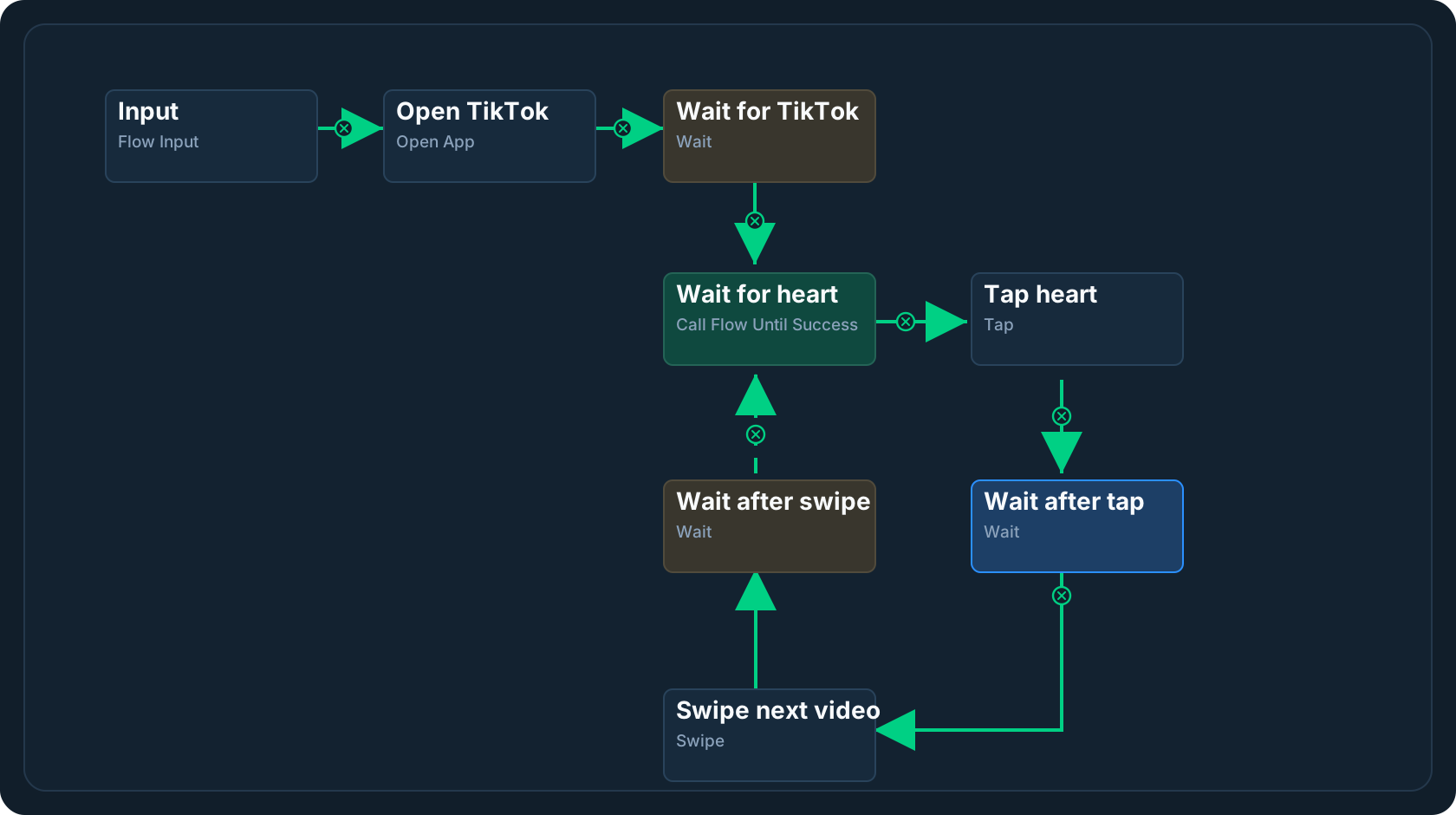
Think of a Flow configuration as a flowchart: each node in the Flow does one thing. Every node has inputs and outputs, and the previous node passes data to the following nodes. For example, an [Image Match node] only finds the image coordinates, then passes those coordinates to the next [Click node] to perform the click task.
A profile stores one or more flows. The Main Flow is the entry point that runs when you start automation on a device.
Flow provides many types of nodes for different kinds of tasks. Each node handles one clear action or data-processing step, such as screen operations, conditions, data transformation, flow control, external service interaction, or calling another Flow. After a node runs, it can output data for later nodes to use.
LaiCai Flow nodes cover screen observation, device actions, data processing, flow control, and external integrations. You combine them like building blocks: observe the screen, choose data, act on the device, then branch, wait, loop, or call another Flow.
Use image matching, OCR, object detection, screenshots, and UI tree search to find text, buttons, templates, or visible targets on the current Android screen.
vision.matchvision.ocrvision.detectvision.captureui.findTap, swipe, long press, drag, type text, press keys, or use the clipboard after a previous node provides a target position or value.
pointer.tappointer.swipepointer.longPresspointer.draginput.textOpen or stop Android apps, send Home and Back, take screenshots, record the screen, adjust volume, or save media to the phone.
app.openapp.forceStopdevice.homedevice.backdevice.screenshotPick fields, read JSON paths, build objects and arrays, filter and sort lists, compare values, and store runtime state for later steps.
data.pickdata.filterdata.sortdata.jsonGetvar.setstorage.getBranch by conditions, wait between steps, stop a run, call child Flows, repeat a Flow, loop over arrays, or run until a child Flow succeeds.
flow.branchflow.waitflow.runflow.repeatflow.forEachflow.untilCall HTTP APIs, load local files, run saved macros or AutoJS scripts, and use ADB Shell when a task needs deeper Android automation.
http.requestfile.loadmacro.playautojs.runadb.shellBest for people with programming or automation experience when the task is clear and not too complex. In Graph View, manually add automation nodes, connect them in execution order, then configure each node’s parameters, inputs, outputs, and data passing between nodes.
No programming background is required. Anyone can describe an automation task in natural language and let AI generate or edit a Flow inside the LaiCai app. You can explain the goal like a conversation, such as opening an app, finding a button, reading text, tapping an element, entering content, or repeating actions. You can also use @mention to quickly choose template images, OCR regions, device assets, or an existing node so AI can update the current Profile more accurately.
Best for people who already use Codex, Claude, or similar desktop AI tools. Through LaiCai MCP, the desktop AI can directly read devices, node capabilities, automation assets, and existing Profiles, so you do not need to copy that context into the chat and do not spend extra LLM API tokens on that local context. You can keep using Codex and Claude for code reading, file analysis, structured reasoning, and long-context work while AI generates, checks, or updates a LaiCai Flow Profile.