Mirror and control Android
View the Android screen on a larger display and operate supported app workflows without constantly switching context.
Android devices and emulators on PC
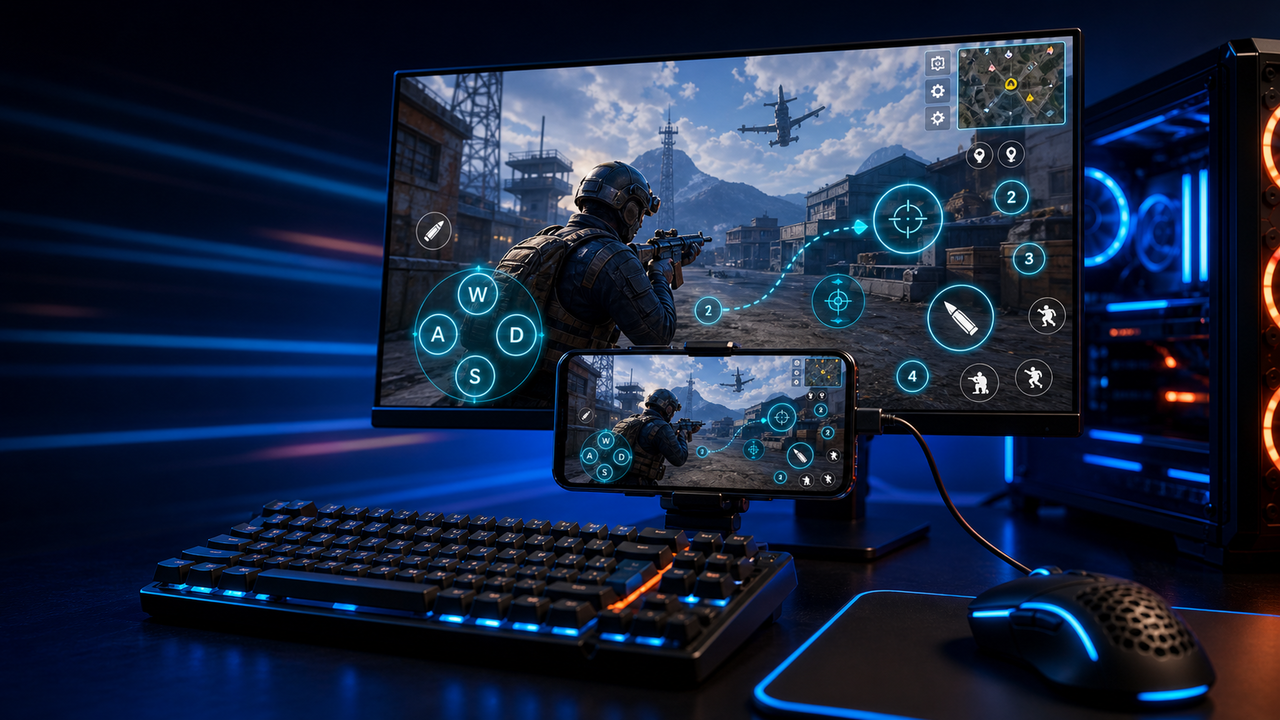
Open the phone screen on your Windows PC or Mac, click through apps, type from your keyboard, and record the steps. Your apps keep running on the connected Android device.
LaiCai Screen Mirroring
Working with an app on a real phone can mean moving between two screens for every tap, message, or screenshot. LaiCai Screen Mirroring brings the phone display and input controls into your desktop workspace. Supported emulator instances can also be connected when your workflow needs them.
HowTo
Start with one phone over USB. Confirm both the display and input before adding game controls or more devices.
Install LaiCai on your Windows PC or Mac, then unlock your Android phone.
Enable USB debugging in the phone's developer options and connect it using a data-capable USB cable.
Accept the phone's debugging authorization prompt for your trusted computer, then select the connected device in LaiCai.
Open the mirrored screen. Click an app, navigate back, and type into a non-sensitive text field to check input.
For games, open key mapping and assign keys to the required touch controls. Check each action before combining them.
Capture screenshots, record the workflow, or add devices to a group once the first phone works as expected.
Workflow
View the Android screen on a larger display and operate supported app workflows without constantly switching context.
Map movement, aim, fire, backpack, skills, camera, and other touch areas to your own keyboard, mouse, or controller layout.
Use device groups for QA, customer support, e-commerce, live commerce, training, or multi-account operational checks.
Comparison
Good for virtual Android environments and many games.
LaiCai is useful when those environments need desktop control, key mapping, recording, or multi-target operations.Good for technical users who want a lightweight mirror.
LaiCai adds a visual product workflow, key mapping, recording, and device groups.Good when the device does not need to be local.
LaiCai focuses on local Android devices and emulators controlled from PC or Mac.FAQ
Install LaiCai Screen Mirroring, turn on USB debugging on the phone, connect a data-capable USB cable, and approve the computer on the phone. Select the device to open its screen, then check that a tap, Back, and text input reach the phone before you start.
Follow the connection guideNo. LaiCai Screen Mirroring shows and controls a connected Android phone from your computer, and the phone's apps and data stay on the phone. It can also connect supported emulator instances, but it does not create an emulator itself.
No. LaiCai Screen Mirroring connects through USB debugging, which you turn on in Developer options and approve on the phone. Root access is not required.
Turn on USB debuggingUnlock the phone and look for the USB debugging authorization prompt. Confirm USB debugging is on, then try a data-capable cable and another USB port. Charging alone does not mean the computer has a data connection.
Check Android connection setupYes. LaiCai Screen Mirroring runs on Windows and macOS, and works with real Android phones and supported emulator connections. Connect and check each device before adding it to a group.
Connect a phone or emulatorCheck whether the problem affects the whole phone or only one app. Verify the phone's authorization and any device-specific input settings, such as the extra USB debugging switch on Xiaomi phones. Adding game key mapping will not repair a failed basic input path.
Follow the phone control guideConnect a phone, verify mouse and keyboard input, then add recording, game key mapping, or device groups as your work requires.